
Content Calendar
Schedule and manage content across all your clients in one visual calendar.
Overview
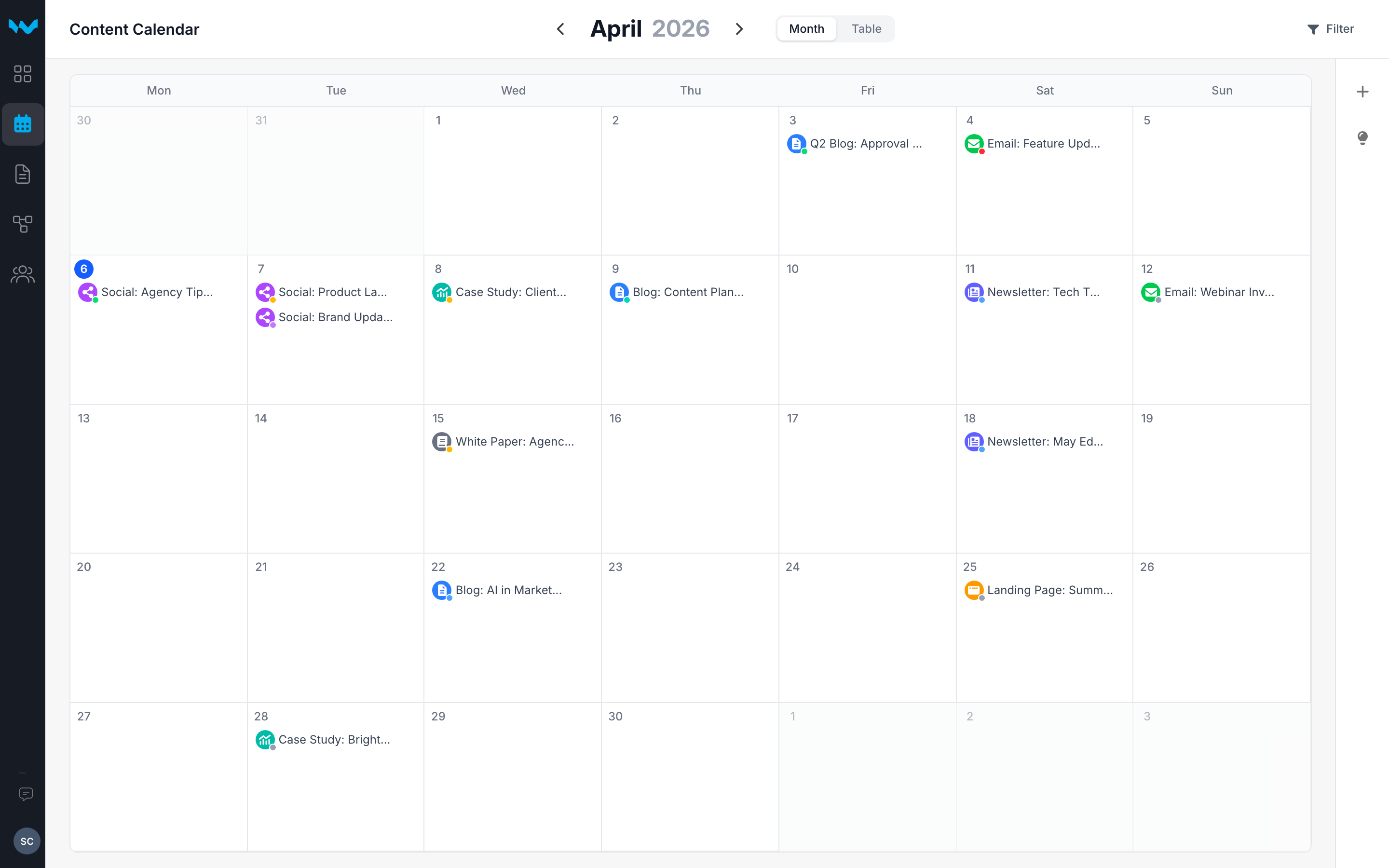
The content calendar gives you a visual month view of every piece of content across all your clients. Drag and drop to reschedule, filter by status or content type, and see at a glance what's in progress, what's in review, and what's approved.
Navigating the Calendar
- Month view shows all scheduled content as color-coded cards on the calendar grid
- Table view provides a dense list view for quick scanning
- Use the arrow buttons to navigate between months
- Filter by content type, status, or writer to focus on what matters
Scheduling Content
To schedule a piece of content, create a brief and assign it a deadline. The content appears on the calendar on its deadline date. You can drag and drop items to reschedule them.
Ideas Backlog
The Ideas panel on the right side holds content ideas that aren't yet scheduled. Capture ideas as they come up, then drag them onto the calendar when you're ready to commit.
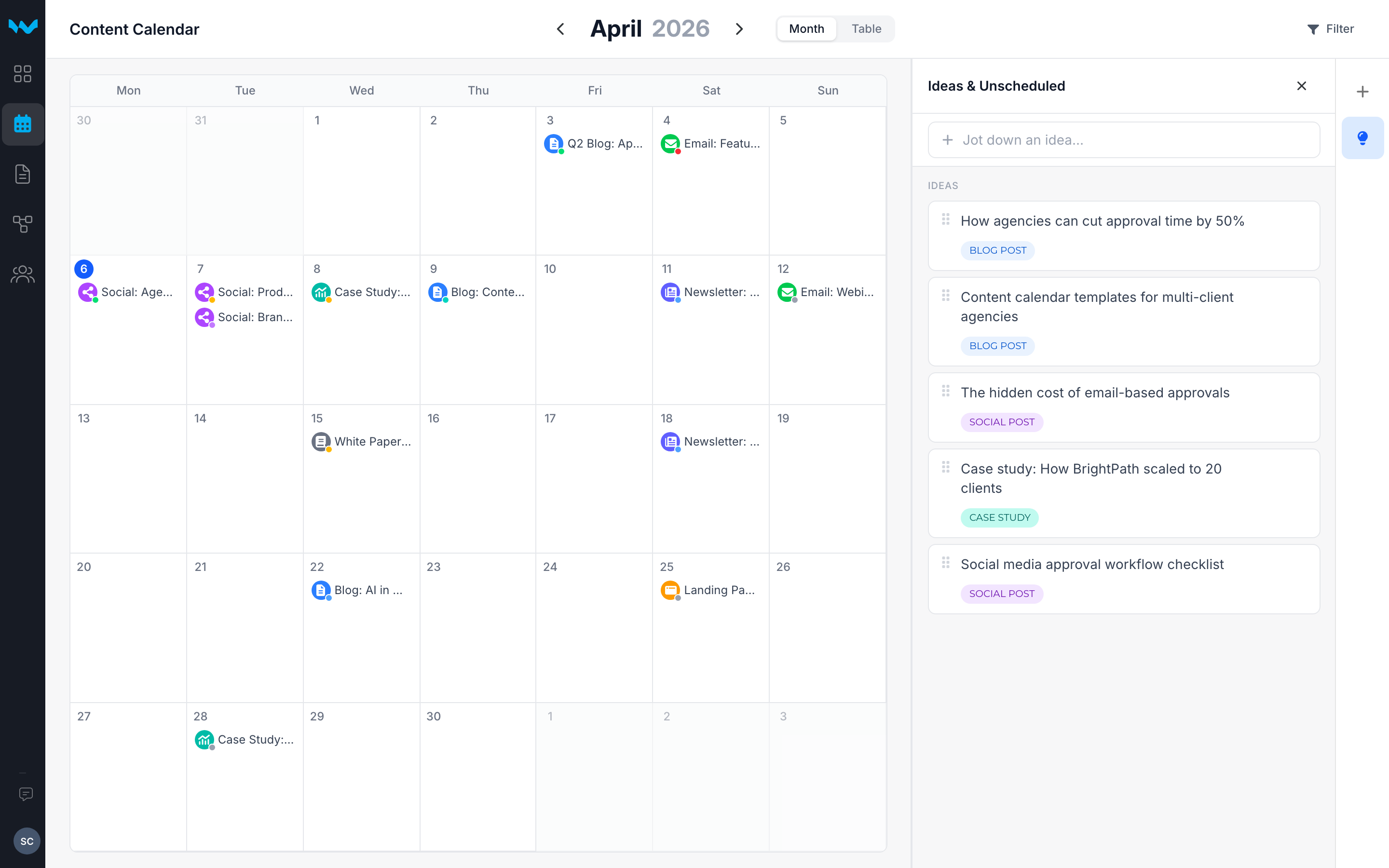
When you drag an idea onto a date, Writerflow creates a brief and sets the deadline automatically.
Still need help?
Reach out to us at support@writerflow.com